Getting started
Choose a date format before typing →
Select US, EU or ISO, then type a date or use the adjacent calendar. The display format changes without changing the underlying date.
Worked example: 03/04/2026 means March 4 in US format and April 3 in EU format.
Try it →Counting rules
When does a day count? →
By default, date spans exclude the start and include the destination. Choose the inclusive option to count both dates. Adding months clamps once to the final month.
Worked example: October 9 to October 10, 2026 is 1 day, or 2 when both dates count.
Try it →Business days and holidays
Select the right holiday region →
Business days exclude Saturday and Sunday. Enable holidays and choose national coverage or a region. Only holidays on otherwise working weekdays reduce the count. Check the named list and data coverage.
Worked example: December 24–28, 2026 in the United States has 1 working day after Christmas and the weekend are excluded.
Try it →Troubleshooting
Why is a date rejected? →
Use the shown format and a real date between 1900 and 2100. An unfinished or impossible date disables copy and sharing until corrected. Age references must not precede birth dates.
Worked example: February 29, 2026 is invalid; February 28, 2026 is valid.
Try it →Account-free features
Share a Countdown target →
Share link copies the event name, target date, time and timezone in a URL so another device can open the same target. The displayed time left depends on the current time.
Worked example: Set New Year for January 1, 2027 and share the link to reproduce the event on another device.
Try it →Report a problem
Send a useful correction report →
Use Contact to copy a report template and email support. Include inputs, selected options, country/region and the expected and actual result. Do not include unrelated personal data.
Worked example: For a month-end issue, report January 31, 2026 + 1 month and the expected result February 28, 2026.
Try it →Glossary
Calendar days, weekdays and elapsed time →
Calendar days count dates. Weekdays remove Saturday and Sunday. Business-day results can also remove selected holidays. Elapsed time measures the hours and seconds between instants and can be affected by daylight saving.
Worked example: October 9–12, 2026 spans 3 calendar days but 1 weekday before holiday exclusions.
Try it →Getting started
Calculate your age with timezones →
Enter your birth date and time, including seconds, in the format selected in the site settings. US uses a 12-hour time with AM or PM; EU and ISO use a 24-hour time. Changing the format keeps the same birth date and time.
Worked example: A person born on January 1, 2000 at 00:00:00 UTC is exactly 26 years old on January 1, 2026 at 00:00:00 UTC when the calculation timezone is UTC.
Try it →Getting started
Using Countdown →
Create one or more named timers with independent target dates, times and timezones. Select Start to update a timer from the current moment; select Stop to stop that timer. Defaults to the timezone selected in the site settings. Choose a different zone for this target if needed.
Worked example: With the current time at October 12, 2026, 09:00:00, set the target to October 12, 2026, 09:02:05. Start shows 2 minutes and 5 seconds. At 09:00:05 it shows 2 minutes and 0 seconds; seconds stay visible because they appeared at the start. At 09:02:05 both parts remain visible at zero.
Try it →Getting started
Convert a time between timezones →
Enter a date and time in the source zone to see the same moment in the destination zone. Conversion happens in your browser.
Worked example: July 10, 2026 at 12:00 UTC is July 10 at 08:00 in America/Toronto. Changing the destination preserves the same moment. During a clock change, a local time can be missing or repeated.
Try it →Getting started
Calculator controls and result details →
Enter a start date and whole years, months, weeks or days. Each unit has its own increment: years and months offer 1, 3, 5 and 10; weeks offer 1, 5, 10 and 20; days offer 1, 10, 30 and 90. On mobile, plus is above the number and minus below it. Swipe the one-number wheel to choose an increment, or focus it and use Up/Down, Home or End. Reset restores increment 1 for every unit.
Worked example: Start on October 12, 2026 and enter 10 days. The left result is October 2, ISO week 40; the right result is October 22, ISO week 43. With a Days increment of 30, plus changes 10 to 40 without changing the other units.
Try it →Getting started
Icons and what they do →
Use this visual guide to recognize the controls before selecting them. Green dots mark the starting date and red dots mark the destination date; symbols and labels also distinguish their meaning.
Worked example: Start on October 12, 2026 and enter 10 days. The left result is October 2, ISO week 40; the right result is October 22, ISO week 43. With a Days increment of 30, plus changes 10 to 40 without changing the other units.
Try it →Getting started
IP and manual location selection →
Every page load without a supported country in its URL starts in IP mode. The current connection supplies the country and, when available, region and timezone; the country supplies the date format. On Azure, only the country is detected, so its default region and timezone are used. If a trusted connection address is unavailable, the unavailable-location notice is shown. Old saved location or format settings do not override a new load.
Worked example: Open country=CA®ion=CA-BC: Manual, Canada, British Columbia, ISO dates and Vancouver time. Select IP to use your current connection instead.
Try it →Getting started
Timezones, UTC offsets and abbreviations →
UTC (Coordinated Universal Time) is a shared reference. UTC+02:00 means two hours ahead; UTC−05:00 means five hours behind. Some offsets include minutes, such as UTC+05:45.
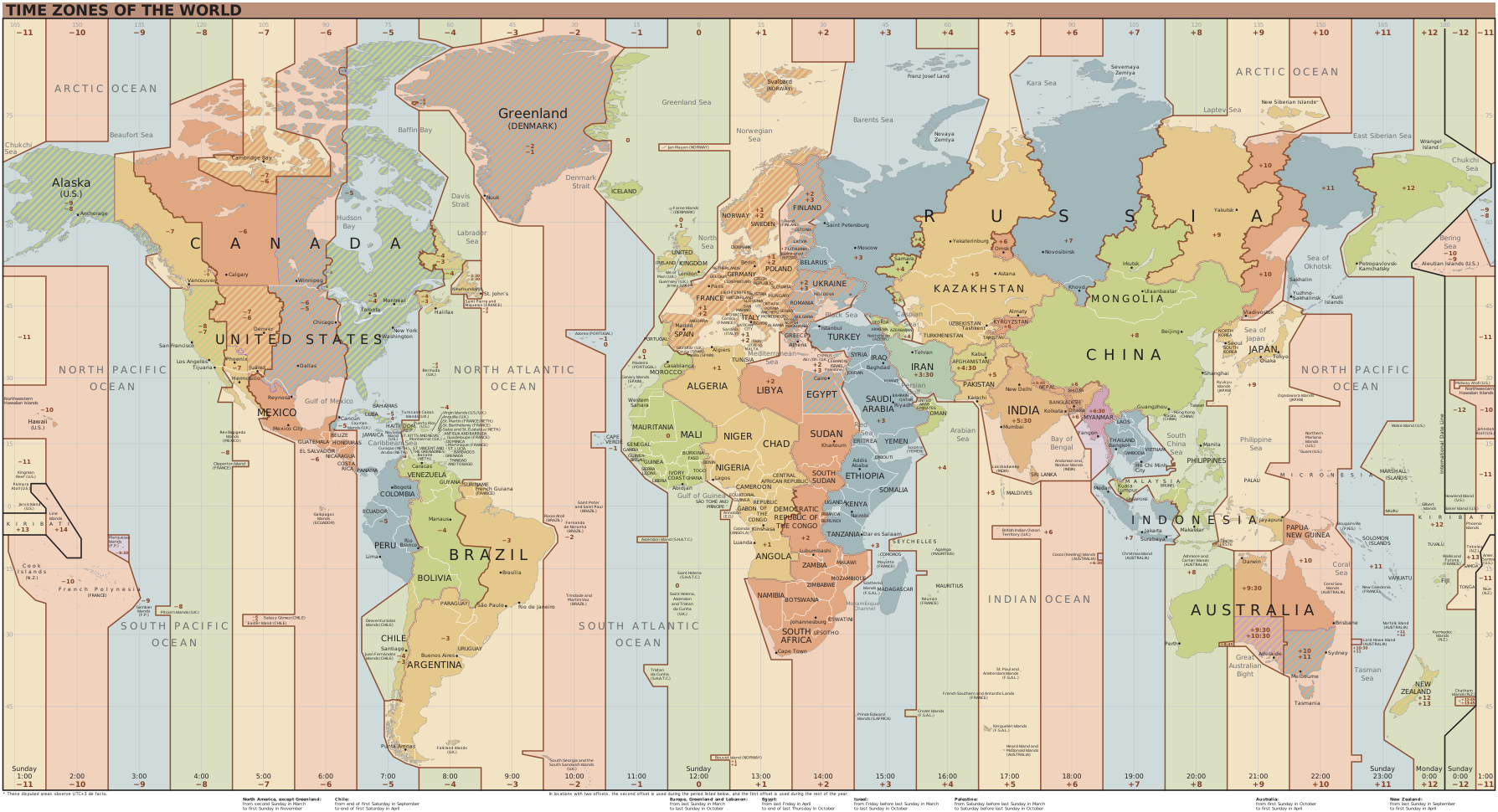
Map labels: English.
This downloaded map is an overview, not a live clock or an official reference. Read its legend for seasonal rules and verify the exact location and date with the responsible authority. Names and boundaries express no political position.
Map by Heitordp, based on a CIA World Factbook outline and IANA timezone information, via Wikimedia Commons. Wikimedia Commons · Public domain — free for commercial reuse.

Only the displayed language was selected; geography and timezone data were not edited.
Last updated: · Local copy downloaded:
Worked example: At 12:00 UTC on January 15, 2026, Toronto is 07:00 EST (UTC−05:00) and Paris is 13:00 CET (UTC+01:00). At 12:00 UTC on July 15, Toronto is 08:00 EDT (UTC−04:00) and Paris is 14:00 CEST (UTC+02:00).
Try it →